Project Flow PowerPoint Template
If you’ve ever spent hours formatting timelines, rearranging project phases, or struggling to make a Gantt chart look clean and professional—this is for you. The Project Flow PowerPoint Template isn’t just another slide deck—it’s a visual framework designed to map how work actually moves: from idea to execution, review to delivery. It helps teams and individuals tell a clear, cohesive story about progress—not just list tasks.
What Makes This Template Different?
Most presentation templates focus on aesthetics: bold fonts, smooth transitions, trendy color palettes. The Project Flow PowerPoint Template starts with function. Every slide reflects a real moment in a project’s lifecycle—kickoff, stakeholder alignment, milestone tracking, risk assessment, retrospective. That means no more forcing your content into generic layouts. Instead, you get purpose-built visuals like flow-based roadmaps, phase-gated decision trees, and status dashboards that adapt as your work evolves.
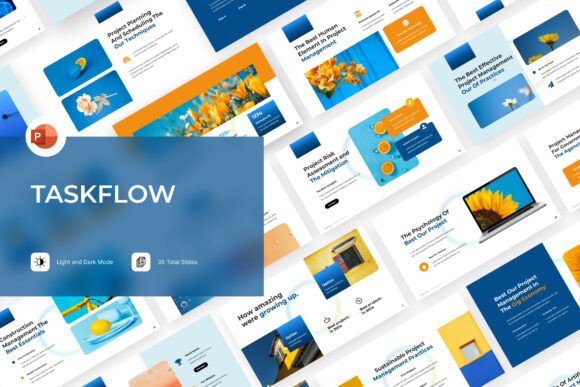
It includes 35 unique slides, each handcrafted—not auto-generated—with intentional spacing, balanced hierarchy, and consistent iconography. And because real-world use isn’t always predictable, it offers both light and dark background versions, plus full customization via Microsoft Office theme colors. You’re not locked into someone else’s palette—you’re empowered to match your brand or team’s tone instantly.
Who Benefits—and How?
This template shines for anyone who communicates progress—but especially for those who don’t have time (or design training) to build clarity from scratch.
- Freelancers pitching a new client can use the “Project Scope & Timeline” slide to outline deliverables and deadlines—visually reinforcing reliability before the contract is signed.
- Small business owners launching a product might use the “Phase-Driven Launch Plan” to align their marketing, operations, and customer support teams—no jargon, just shared understanding.
- Educators teaching project management basics can replace text-heavy lectures with interactive slides showing how scope creep unfolds—or how feedback loops improve outcomes.
- Marketing teams presenting campaign performance can layer KPIs onto flow-based journey maps, making trends easier to spot than in static tables.
Even if you're new to project management, the structure guides you. Labels like “Define → Align → Build → Review → Close” aren’t just headings—they’re gentle prompts for what belongs on each slide. There’s no need to guess where to put assumptions or dependencies; the layout already anticipates them.
More Than Just Slides—It’s a System
The package includes 90 XML files, which means deeper customization is possible—not just changing colors or fonts, but adjusting master layouts, slide placeholders, and even animation triggers (if you choose to use them). These aren’t pre-baked “themes” that break when edited. They’re built to stay flexible under real editing pressure.
You’ll also get a help guide file—not a dense manual, but a quick-reference walkthrough covering how to swap icons, update color schemes, toggle between light/dark modes, and import your own data into charts. No tech degree required.
And while stock images aren’t included (to keep file size lean and licensing clear), every infographic is built using native PowerPoint shapes and vectors—so they scale crisply, print cleanly, and load fast—even on older machines.
Where It Fits in Your Workflow
Think of this template as your “project storytelling layer.” It doesn’t replace your project management tool (like Asana or ClickUp), but it complements it beautifully. While those tools track *what’s done*, this helps explain *why it matters*—to clients, executives, students, or cross-functional peers.
You might use it to:
- Turn weekly stand-up notes into a 5-slide progress snapshot for leadership.
- Create reusable onboarding decks for new team members joining mid-project.
- Design a pitch deck that shows not just your solution—but how it flows through the client’s existing process.
- Build internal training materials that walk people through change management steps—not abstract theory, but concrete actions and handoffs.
Things to Keep in Mind Before You Start
First—this isn’t a plug-and-play automation tool. It won’t auto-fill your budget numbers or sync with your calendar. Its power comes from thoughtful adaptation. That said, its flexibility means it works whether you’re using PowerPoint on Windows, Mac, or even web-based versions (with minor layout checks).
Second, while all slides are fully editable, some advanced features—like dynamic XML-driven animations—require familiarity with PowerPoint’s Slide Master and Format Painter tools. If you’re completely new, set aside 20–30 minutes to explore the help guide and test one slide end-to-end before building a full deck.
Third, consider your audience’s expectations. A boardroom may appreciate the clean, data-forward “Milestone Tracker” slide. A creative team might resonate more with the “Collaboration Flow” visual—showing who contributes when and how ideas evolve. Let purpose—not polish—drive your slide choices.
A Practical First Step
Try this: Open the “Project Kickoff” slide. Replace the placeholder title with your actual initiative (“Q3 Website Redesign”). Swap the default timeline bars with your three biggest milestones—and add one sentence beside each explaining *why* that milestone unlocks the next step. In under five minutes, you’ve created something far more meaningful than a bullet list.
That’s the quiet strength of the Project Flow PowerPoint Template. It doesn’t ask you to become a designer or a strategist. It simply gives you a smarter starting point—so your ideas land, your plans stick, and your work feels less like a presentation, and more like a shared path forward.